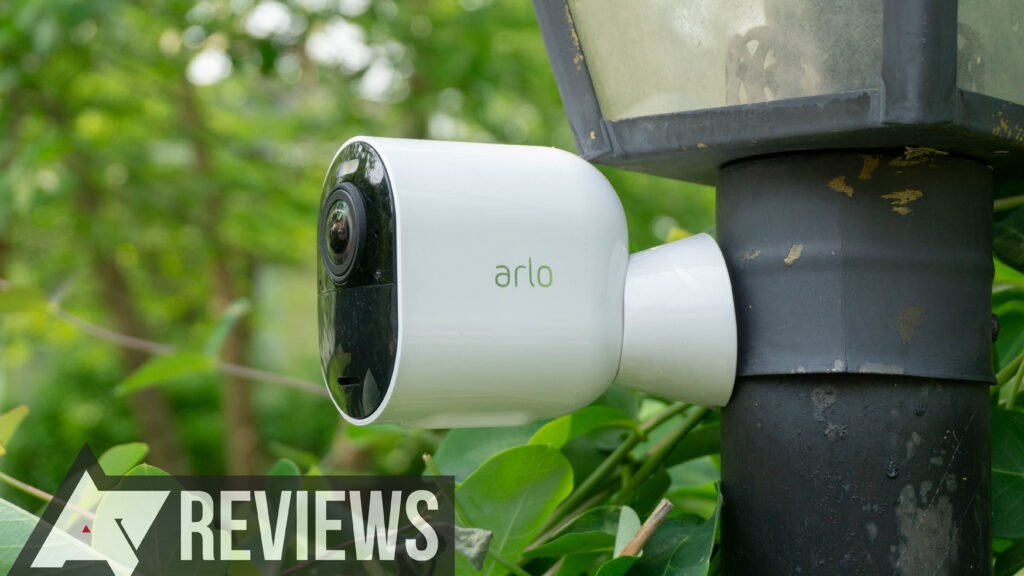
An Arlo camera that keeps showing offline almost always comes down to one of three things: a weak or dropped Wi-Fi connection, a drained battery, or a SmartHub/Base Station that has lost its link. The good news is that you can fix the vast majority of offline errors yourself in under ten minutes — no support ticket, no replacement camera.
This guide lists the fixes in the order a technician would actually try them: quickest and most common first, factory reset last. Work down the list and stop as soon as your camera comes back online.
Quick answer: the 60-second fix
If you only have a minute, do this: open the Arlo Secure app, then power-cycle the camera (pull the battery for 10 seconds, or unplug a wired camera for 15 seconds) and restart your router. Roughly 7 out of 10 offline cases clear with this single step, because it forces both the camera and your network to renegotiate a fresh connection. If it’s still offline after that, keep reading.
Why is my Arlo camera offline?
“Offline” in the Arlo app simply means the camera stopped talking to Arlo’s servers. That break can happen at any point in the chain: camera → Wi-Fi/SmartHub → router → internet → Arlo cloud. The most common causes are:
- Weak Wi-Fi signal — Arlo needs a stable 2.4 GHz signal, and thick walls, mirrors, or distance from the router degrade it fast.
- Low battery — below ~25% charge, Wi-Fi drops become frequent and the camera goes offline to protect itself.
- SmartHub / Base Station disconnected — if the hub loses power or its Ethernet link, every camera on it shows offline at once.
- Router changes — a new router, changed Wi-Fi password, or an ISP-pushed firmware update can silently drop the camera.
- Outdated firmware — old camera firmware and known connectivity bugs.
- Extreme temperature — outdoor cameras can go offline above ~45 °C (113 °F) or below −10 °C (14 °F). This is normal and self-corrects.
Fix 1 — Power-cycle the camera and hub
This resets the camera’s radio and clears temporary connection glitches.
- Battery models: open the housing, remove the battery, wait 10 seconds, reinsert it, and close the housing until it clicks.
- Wired models: unplug the power adapter, wait 15 seconds, plug it back in.
- If you use a SmartHub or Base Station: unplug it for 30 seconds, then plug it back in and let the LED return to solid blue before checking the camera.
Give the app up to two minutes to reconnect before deciding it didn’t work.
Fix 2 — Check and strengthen the Wi-Fi signal
Signal strength is the single biggest cause of repeat offline errors.
- In the Arlo Secure app, open the camera’s Device Settings → Connected to and check the signal bars. One or two bars means the camera is too far from the router or hub.
- Move the camera closer, or move the SmartHub to a more central location — every wall between the two roughly halves the usable signal.
- Keep the camera away from microwaves, cordless-phone bases, baby monitors, and metal surfaces, which all interfere with 2.4 GHz.
- For far corners of a property, add a Wi-Fi extender or a mesh node near the camera.
Fix 3 — Recharge or replace the battery
Charge the battery fully and reinsert it. If the camera runs fine on a fresh charge but drops offline again within a day or two, the battery is likely worn — Arlo batteries lose meaningful capacity after 2–3 years. Try a known-good spare battery to confirm before buying a replacement.
Fix 4 — Restart your router
Unplug the router for about 30 seconds, plug it back in, and wait for the internet light to go solid (usually 1–2 minutes). Once the network is back, Arlo cameras normally reconnect on their own within a few minutes. If you recently changed your Wi-Fi name or password, the camera can’t rejoin the old network — you’ll need to re-run setup (Fix 8).
Fix 5 — Confirm the router is broadcasting 2.4 GHz
Arlo cameras connect on 2.4 GHz, not 5 GHz. On many modern routers both bands share one Wi-Fi name (“band steering”), which can push the camera onto a 5 GHz band it can’t use.
- Log into your router’s admin page (often
192.168.0.1or192.168.1.1). - Make sure the 2.4 GHz band is enabled.
- If possible, temporarily give the 2.4 GHz band its own name (e.g.
MyWiFi-2G) and reconnect the camera to that name during setup.
Fix 6 — Update Arlo firmware
Outdated firmware is a common cause of recurring drops. Arlo usually updates automatically, but you can check: in the Arlo Secure app open Settings → My Devices, select the camera, and open Device Info → Firmware. If an update is available, keep the camera powered and within good Wi-Fi range until it finishes — interrupting a firmware update can leave the camera unresponsive. You can also review Arlo’s own official support knowledge base for model-specific firmware notes.
Fix 7 — Re-check the SmartHub / Base Station link
If several cameras went offline at the same time, the problem is almost certainly the hub, not the cameras. Confirm the SmartHub’s Ethernet cable is firmly seated in a working router port, that its LED is solid blue, and that it’s not plugged into a switch or port that has gone down. Reseat the Ethernet cable and power-cycle the hub (Fix 1) before touching the cameras themselves.
Fix 8 — Remove and re-add the camera
If the camera is still offline, delete it from the app and set it up fresh — this rebuilds its connection profile from scratch.
- In the app, open the camera’s settings and choose Remove Device.
- Tap Add Device and follow the on-screen steps.
- When prompted, connect to your 2.4 GHz network and enter the current Wi-Fi password.
Fix 9 — Factory reset (last resort)
Only do this if nothing above worked. A factory reset wipes the camera’s settings and requires full re-setup.
- Remove the camera from the Arlo Secure app first.
- Press and hold the sync button on the camera (or on the SmartHub, depending on your model) for about 10–15 seconds until the LED blinks amber.
- Release the button, wait for the LED to settle, then add the camera back through the app as a new device.
Still offline? When to contact Arlo support
If the camera stays offline after a factory reset and re-setup, and a known-good battery and strong 2.4 GHz signal are confirmed, the issue may be hardware — a failed radio or a battery contact fault. At that point, contact Arlo support with your model number and note which of the steps above you’ve already tried, so they can skip straight to a warranty check.
How to stop your Arlo camera going offline again
- Keep the camera within strong 2.4 GHz range, or add a mesh node near it.
- Charge batteries before they drop below 25%, or switch to a solar panel / wired power for always-on cameras.
- Leave automatic firmware updates on.
- Give the 2.4 GHz band its own SSID so the camera never gets steered to 5 GHz.
- Avoid mounting outdoor cameras in direct, unshaded heat.
Frequently asked questions
Why does my Arlo camera keep going offline and coming back?
Intermittent offline/online cycling is almost always a borderline Wi-Fi signal or a battery under ~25%. Move the camera closer to the router or hub, or charge the battery, and the flapping usually stops.
Does resetting my router fix an offline Arlo camera?
Often, yes — a router restart clears network glitches and lets the camera grab a fresh connection. If it doesn’t reconnect within a few minutes, power-cycle the camera too.
My Arlo camera is offline but the Wi-Fi works fine — why?
The camera connects on 2.4 GHz specifically. If your phone is on 5 GHz it can look like “the Wi-Fi is fine” while the 2.4 GHz band the camera needs is weak, disabled, or being band-steered. Check Fix 5.
Will a factory reset delete my recordings?
A factory reset clears the camera’s local settings, not cloud recordings tied to your Arlo account. Your saved clips in the cloud remain, subject to your plan’s retention period.
How long should I wait for an Arlo camera to come back online?
After a power-cycle or router restart, give it up to 2–3 minutes. After a firmware update, up to 10 minutes. If it’s still offline beyond that, move to the next fix.